

How to Set Up Your LuvLink Friendship Lamp in Canada: A Step-by-Step Guide for New Owners
Quick answer: Setting up a LuvLink Friendship Lamp in Canada takes about 10 minutes. Download the LuvLink app, create an account, plug in your lamp, connect it to your 2.4 GHz Wi-Fi, and link it to your person's lamp by sharing a group code. Once it's done, touch the lamp to send them a colour — and wait for them to glow back.
Your lamp just arrived. Maybe your daughter just finished unpacking her first apartment in Vancouver — moving boxes still on the floor, not quite home yet. You're five minutes away from that first real moment: you touch yours, and her living room lights up. Here's exactly how to get there.
What You Need to Set Up a LuvLink Friendship Lamp in Canada
Keep these things close before you plug anything in. It makes the whole process faster and you won't have to hunt mid-setup.
- Your LuvLink Friendship Lamp and its power cable
- A 2.4 GHz Wi-Fi network and your password — not 5 GHz, this is the most common trip-up for Canadians using newer routers
- A smartphone (iOS or Android) with the LuvLink app installed
- Your lamp partner's email or their group code (they'll get this when they set up their own lamp)
A quick note on Wi-Fi: most modern Canadian routers broadcast both 2.4 GHz and 5 GHz under the same network name. If your lamp struggles to connect, log into your router settings and look for a way to split the bands, or temporarily connect your phone to the 2.4 GHz band specifically. Bell, Rogers, and Telus modems all handle this a little differently — a quick search for your router model + "split bands" will get you there in two minutes.
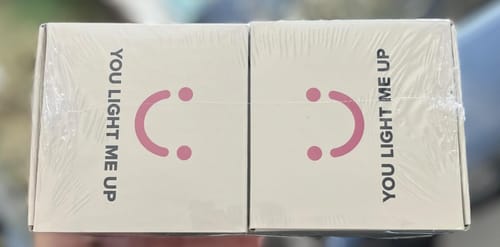
“This is my third iteration of products from LuvLink,and I have to say, we’ve really come a long way from the original model. With new and improved long-distance WiFi and Bluetooth capabilities, it’s easier than ever to stay connected with loved ones, no matter the distance. I’m always amazed at how such a simple product like this touch lamp can make me feel less alone, even when I’m halfway across the world from my family. The setup process is straightforward (with zero issues, thanks to this la...”
Step 1: Download the LuvLink App and Create Your Account
Head to the App Store or Google Play and search "LuvLink." Install the app, then tap Create Account. Use an email address you actually check — you'll need it to link lamps and, if your lamp partner is setting up at the same time, to share your group code with them.
Once you're in, the app will walk you through adding a new device. Tap the + icon or Add a Lamp — you'll see it on the home screen.
Step 2: Plug In and Power On Your Lamp
Place your lamp somewhere you'll actually see it — a bedside table, a desk, near the couch. It should be close enough to your Wi-Fi router to get a solid signal, but anywhere in a typical Canadian apartment or house will work fine.
Plug the power cable into the lamp and into your wall. The lamp will glow or pulse briefly as it powers on. No complicated wiring, no buttons to hold down at this stage. Just plug and wait.
Step 3: Connect Your Lamp to Wi-Fi
Back in the app, follow the on-screen prompts. The app will ask you to:
- Select your Wi-Fi network from the list — choose your 2.4 GHz network
- Enter your Wi-Fi password
- Hold your phone near the lamp while the app sends the connection signal
- Wait for the lamp to confirm — it will typically flash or change colour briefly when it's connected successfully
The whole process usually takes under two minutes. If your lamp doesn't connect on the first try, don't panic — see the troubleshooting section below. It's almost always a Wi-Fi band issue or a typo in the password.
Step 4: Link Your Lamp to Your Person's Lamp
This is the moment that makes the Friendship Lamp actually work — linking your lamp to theirs so that touching one lights up the other, no matter the distance.
In the app, you'll be given a group code. Share that code with your lamp partner (a text works perfectly). They enter the same code into their LuvLink app when setting up their lamp, and your two lamps are paired.
If you ordered a Set of Two or larger, both lamps are already meant to be linked — you just need both people to complete their individual app setup and join the same group using the shared code.
Got more than two people in your group? That's what sets the Friendship Lamp apart. Families across Canada use sets of three, four, five, or even six lamps so that when grandma in Winnipeg taps hers, every lamp in the network lights up. Everyone knows someone's thinking of them.
Step 5: Choose Your Colours and Send Your First Touch
Open the app and browse your colour options — there are over 200 to pick from. You can assign a specific colour to yourself so your lamp partner always knows it's you lighting up their room. Set it in the app under your profile or device settings.
Now, the good part. Touch your lamp. It lights up in your chosen colour. A moment later — whether they're in the next province or halfway around the world — their lamp glows the same colour. No notification sound. No text. Just light.
Friendship Lamp Not Connecting? Common Fixes for Canadian Users
If your lamp setup hit a snag, you're not alone — and it's almost always a quick fix. Here are the most common issues and what to do.
| Problem | Most Likely Cause | Fix |
|---|---|---|
| Lamp won't appear in the app | Lamp not fully powered on yet | Unplug, wait 10 seconds, plug back in |
| Wi-Fi connection fails repeatedly | Connected to 5 GHz instead of 2.4 GHz | Switch your phone to the 2.4 GHz band and retry |
| Password entered but still fails | Special characters in Wi-Fi password | Temporarily simplify your Wi-Fi password, connect, then change it back |
| Lamp connects but doesn't light up when partner touches theirs | Lamps not in the same group | Confirm both users have entered the same group code in the app |
| App won't find the lamp during setup | Bluetooth or location permissions off | Enable Bluetooth and location access for the LuvLink app in your phone settings |
Still stuck? LuvLink's support team is genuinely responsive — reach out through the app or the website and they'll walk you through it directly.
Getting the Most Out of Your Friendship Lamp
Setup done, lamps linked, first colour sent. A couple of things that actually make it stick.
If your lamp is sitting on the kitchen counter and you make coffee every morning at 7 a.m., that's already a ritual your lamp partner will start to recognise. They don't need to know your schedule — after a few weeks, they just know that colour at that hour means you. That kind of quiet, repeated contact is what people describe when they say the lamp feels like a presence, not just a gadget.
The other thing: keep it somewhere you'll actually see it. A lamp in a spare room goes quiet fast. On a desk where you work, or a nightstand where you wake up, it stays in your daily line of sight — and that's when the spontaneous "thinking of you" touches happen. Those mid-Tuesday glows, no occasion, no reason, are the ones people mention months later.
If you're curious how the Friendship Lamp stacks up against LuvLink's other connected lamps, the Friendship Lamp vs. Infinity Lamp guide breaks down exactly who each one suits best. And if you gave the lamp as a gift to a student who just moved away for school, the back-to-school gifts guide for Canadian university students has more ideas for keeping that connection strong.
Ready to get your lamp? Browse the full LuvLink Friendship Lamp — available in sets of two, three, four, five, or six — and start linking.
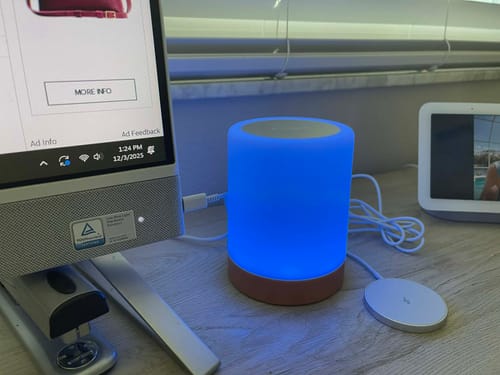
“I really like the luvlink and it is keeping my daughter thinking of me. I also bought one for a friend for a Christmas gift and I sure hope we can figure out how to set it up. LOL”
Frequently Asked Questions
Does the LuvLink Friendship Lamp work in Canada?
Yes, fully. The lamp connects over standard Wi-Fi and the LuvLink app works on both iOS and Android in Canada. The only requirement is a 2.4 GHz Wi-Fi connection — the same type available through every major Canadian provider including Bell, Rogers, Telus, and Shaw.
What Wi-Fi does the Friendship Lamp need?
The Friendship Lamp requires a 2.4 GHz Wi-Fi network. If your router broadcasts both 2.4 GHz and 5 GHz under one network name, you may need to temporarily split the bands in your router settings so the lamp can connect to the correct frequency. This is the most common setup issue for Canadian users with newer routers.
Can I link more than two Friendship Lamps together?
Absolutely. The Friendship Lamp supports groups of up to six lamps, all linked through the same group code in the LuvLink app. When anyone touches their lamp, every lamp in the group lights up — making it a favourite for extended families staying connected across Canada.
My friendship lamp isn't connecting — what should I do first?
Start with the two most common fixes: confirm you're connecting to a 2.4 GHz network (not 5 GHz), and double-check that Bluetooth and location permissions are enabled for the LuvLink app on your phone. If neither of those resolves it, try unplugging the lamp for 10 seconds and restarting the setup process in the app from the beginning.


